Connect Your Data Sources and Build Your Scorecard Follow

Purpose
AI Growth Advisor helps you connect your data sources and build custom scorecards effortlessly. The platform enables users to collect real-time data from multiple sources and present it in a clear, visual format. With detailed scorecards and integrations, users can effectively monitor performance, track key metrics, and make data-driven decisions to optimize operations.
Features and Capabilities
Data Integration
-
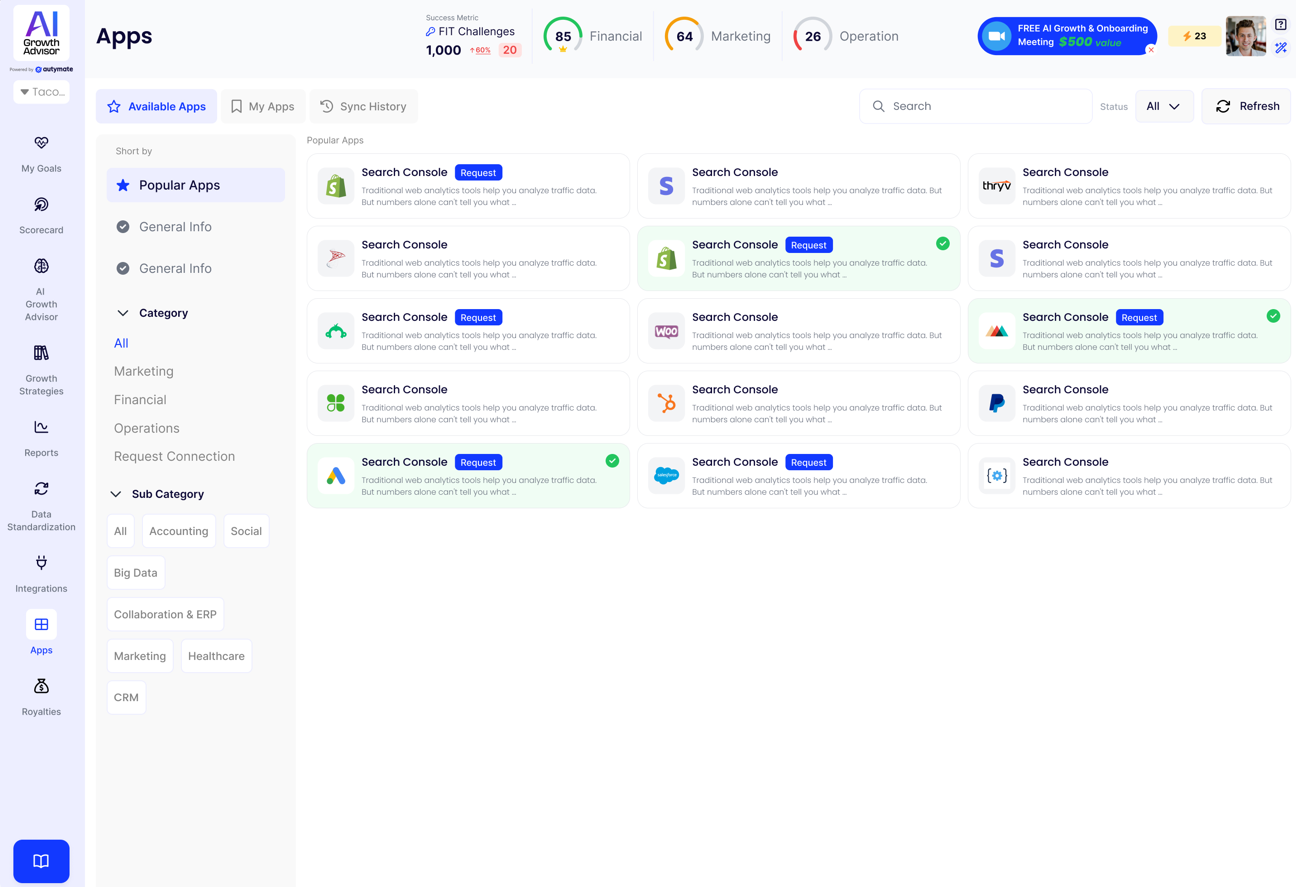
Apps Section Overview:
The redesigned Apps section offers a clear and organized view for connecting and managing your business applications. -
Navigation Tabs:
-
Available Apps: Browse all possible integrations you can connect with AI Growth Advisor.
-
My Apps: See a list of your currently connected applications.
-
Sync History: Review the sync history for all your connections, including timestamps and sync status.
-
-
Category Filters:
-
Easily filter apps by category (e.g., Marketing, Financial, Operations) or by sub-category for quick access.
-
Use the Popular Apps filter to view the most commonly used integrations.
-
-
Connection Process:
-
Click Request on any available app to initiate a connection.
-
Follow the prompts to authenticate and approve access.
-
Once connected, status indicators (such as check marks or alerts) display connection health and sync state.
-
Scorecard Creation
-
Build detailed financial and operational reports using the Custom Scorecard section.
-
Choose from ready-made Template Scorecards or create your own with pre-defined metrics.
-
Templates include options for Balance Sheet Summary, Health Check, Profit & Loss (P&L) Summary, Sales Summary, and more.
-
Visual Scorecard Previews:
-
Instantly preview templates before selecting or customizing.
-
Use the drag-and-drop editor to design your perfect scorecard.
-
-
Customize your layout and metrics to fit your business needs.
User-Friendly Interface
-
The left navigation bar gives you one-click access to key sections: Scorecards, AI Growth Advisor, Growth Strategies, Reports, Data Standardization, and Apps.
-
Search, filter, and preview integrations or scorecards for a streamlined experience.
-
Sub-category tags let you refine your app search (e.g., Accounting, Social, CRM).
Real-Time Updates
-
All connected apps sync automatically to ensure your data is always up to date.
-
Check each app’s sync status directly in the Apps section—look for “Connected” or action prompts if sync issues arise.
-
The Sync History tab displays detailed records of past syncs, allowing you to verify the freshness of your data.
Usage Guidelines
Connecting Data Sources
-
Go to the Apps section using the left sidebar.
-
Under Available Apps, browse integrations by category or use the search bar to find a specific app (e.g., QuickBooks, Salesforce, HubSpot).
-
Click "Request" next to the desired app to start the connection process.
-
Complete authentication and approve data access.
-
Once connected, the app will show up in My Apps with its sync status clearly indicated.
Building Scorecards
-
Navigate to Custom Scorecard under Settings.
-
Pick a Template Scorecard or start from scratch.
-
Select your desired data source (e.g., QuickBooks Online, Thryv).
-
Add and arrange your preferred metrics using the editor.
-
Preview and save your scorecard for instant access.
Real-Time Updates
-
Confirm your apps are syncing properly in the My Apps tab.
-
Check the Sync History to ensure recent updates are reflected.
-
If there are sync issues, click on the affected app to troubleshoot or reconnect.
Troubleshooting and Support
Data Connection Problems
-
Make sure integrations are still active in My Apps.
-
If necessary, re-authenticate to restore the sync.
Scorecard Errors
-
Double-check metric mapping in the editor.
-
Refresh the dashboard to load new data.
Real-Time Sync Issues
-
Use Sync History to verify the last update.
-
Reconnect any app that shows a warning or error.
For more help, visit the AI Growth Advisor Support Center or use the Feedback button within the app.
Comments
0 comments
Article is closed for comments.