How Do I Set Up the Scorecard? Follow

Setting Up Scorecard in AI Growth Advisor
Step 1: Access Scorecards
- Log in to AI Growth Advisor and go to the main dashboard.
- On the left-hand menu, click on the Scorecard section.
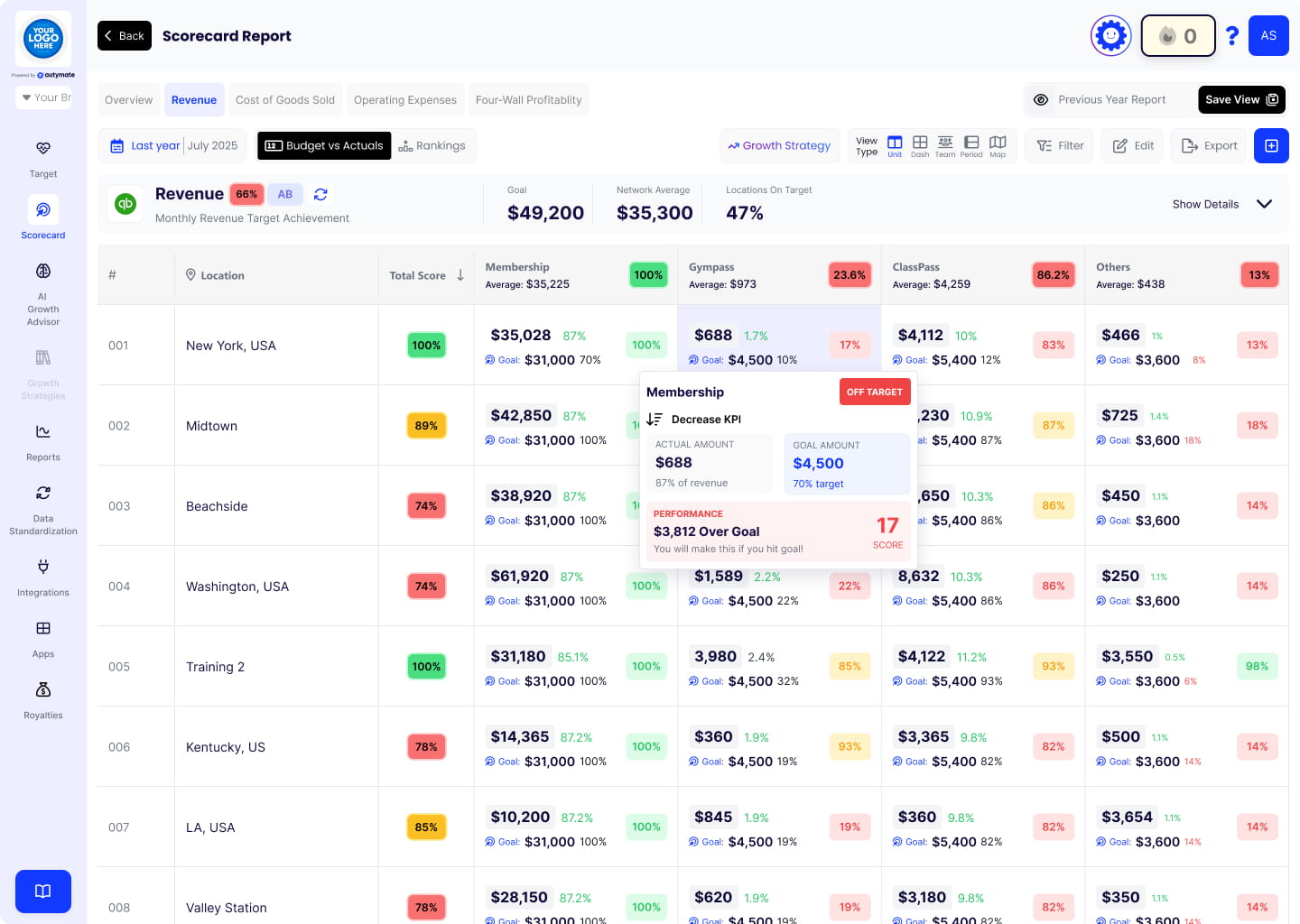
Step 2: Create a New Scorecard
- Click the "+ Button" button in the top-right corner of the Scorecard Overview page.
- This will redirect you to the Custom Scorecard setup page.
Step 3: Choose a Scorecard Type
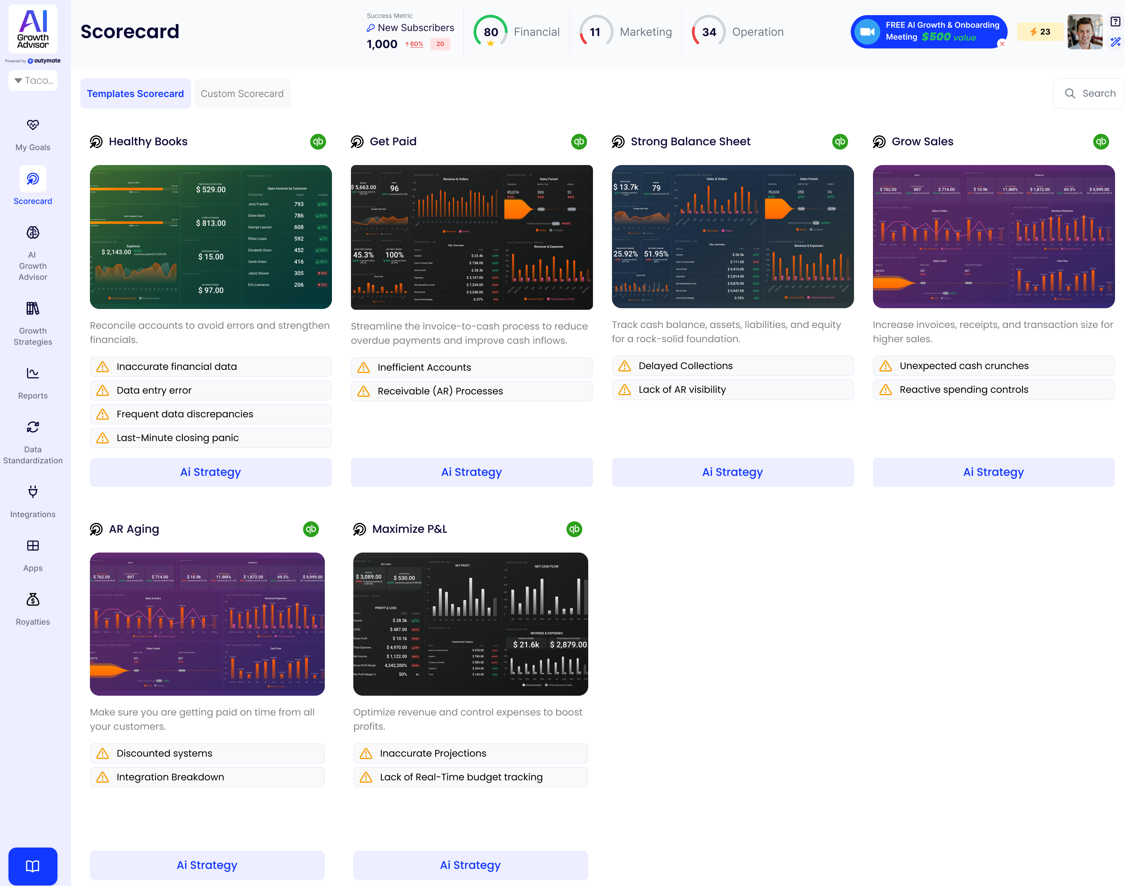
You will see two options at the top of the page:
- Template Scorecards – Pre-designed scorecards with built-in metrics.
- Custom Scorecards – Fully customizable scorecards that allow you to define your metrics.
If selecting Template Scorecards, browse the available templates (e.g., QuickBooks Balance Sheet Summary, QuickBooks Health Check, QuickBooks P&L Summary, QuickBooks Sales Summary).
Click "Use Template" on the preferred template to apply it to your scorecard.
If creating a Custom Scorecard, proceed to the next step.
Step 4: Define Scorecard Parameters
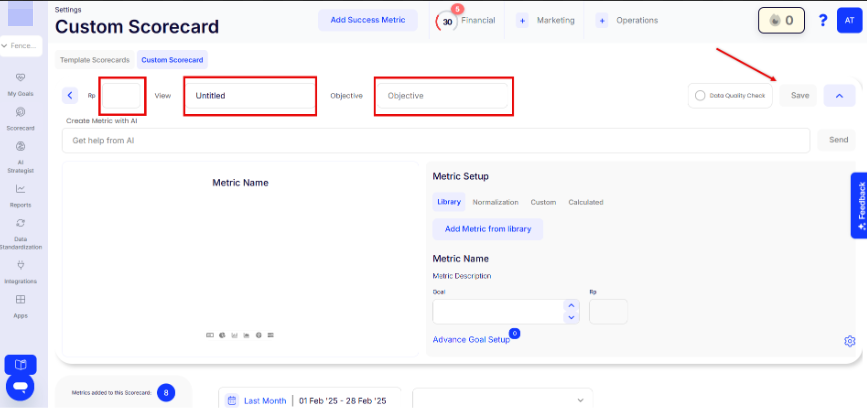
For Custom Scorecards, fill in the required fields:
- View Name – Enter a name for your scorecard.
- Objective – Define the goal or focus of the scorecard (e.g., "Increase Revenue" or "Reduce Expenses").
- Responsible Party (RP) – Assign a team member accountable for the scorecard’s success.
Step 5: Add Metrics
Click "Add Metric from Library" to select predefined metrics or create a custom metric.
You can also use the "Get Help from AI" feature to generate metric suggestions.
Define each metric:
- Name – The title of the KPI.
- Description – A short explanation of what it tracks.
- Goal – The target value for the metric.
For advanced customization, click "Advanced Goal Setup" to configure escalation levels and data tracking.
Step 6: Save and Implement
- Enable Data Quality Check if needed to ensure accurate data.
- Click the "Save" button in the top-right corner to finalize your scorecard.
Editing or Deleting Scorecards
- To modify a scorecard, go to the Scorecards section.
- Click on the scorecard you wish to edit, make the necessary changes, and save.
- To delete a scorecard, select it and follow the deletion prompts.
And that’s it! You’ve successfully set up a scorecard in AI Growth Advisor. This tool monitors performance, tracks key metrics, and drives data-driven decisions.
Comments
0 comments
Article is closed for comments.