How Do We Create a Scorecard from the Available Template? Follow

Creating a Scorecard in AI Growth Advisor is simple! Follow these steps to navigate from your dashboard to a customized scorecard that fits your business needs.
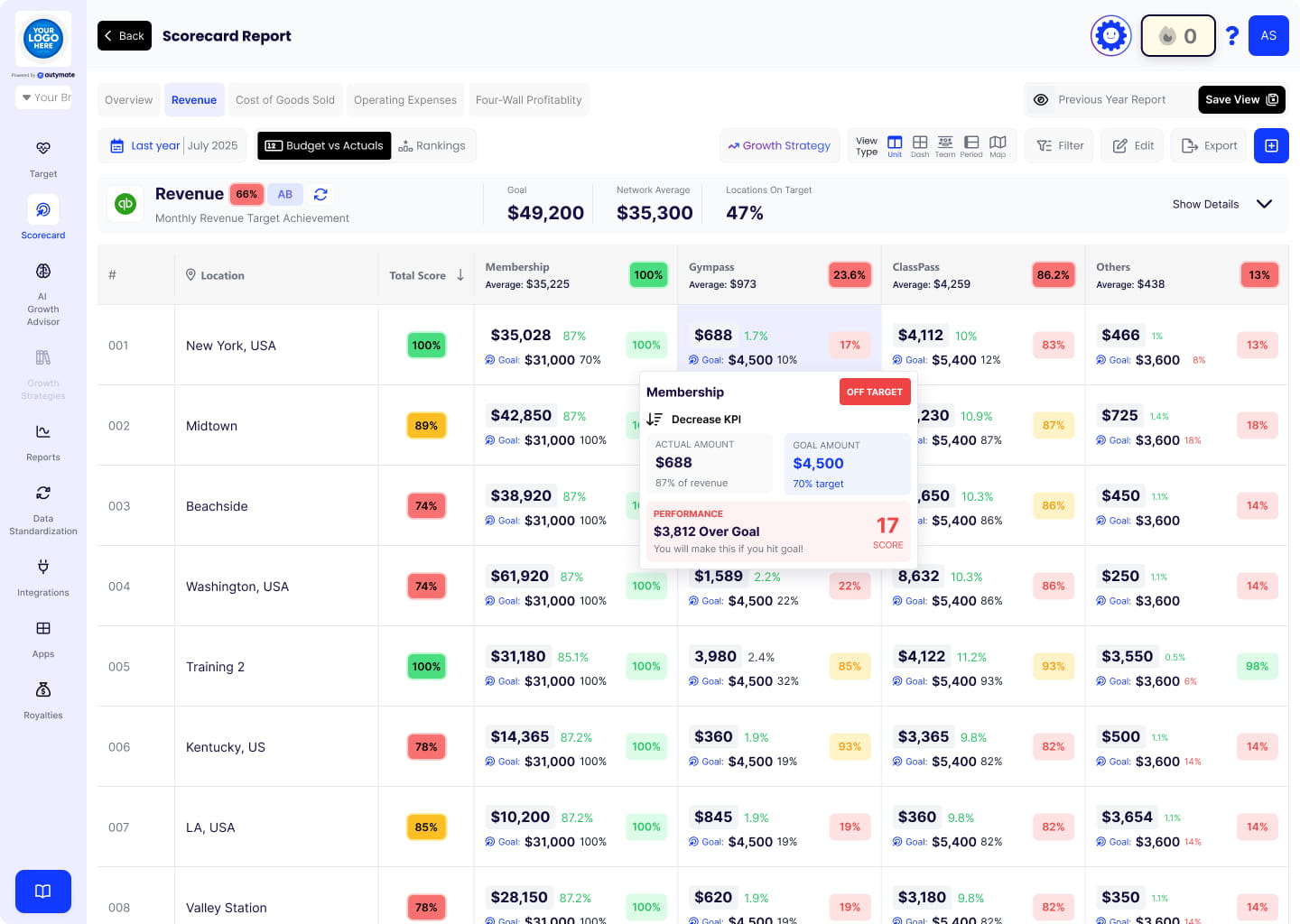
Step 1: Access the Scorecards Section
- Log in to your AI Growth Advisor account.
- Find and click " Scorecard " On the left-hand menu.
- Click the "+ Button" button in the top-right corner of the screen.
Step 2: Choose a Scorecard Type
- You will be redirected to the Custom Scorecard page.
- Choose between:
- Template Scorecards – Pre-built scorecards with predefined metrics.
- Custom Scorecards – Build your scorecard from scratch.
Step 3: Selecting a Template (Optional)
Browse from prebuilt scorecard templates designed to address specific financial challenges like Healthy Books, Get Paid, Strong Balance Sheet, Grow Sales, AR Aging, and Maximize P&L.
Each template highlights common issues (e.g., data entry errors, delayed collections, or inaccurate projections) and links to an AI-powered strategy tailored to solve them.
Click "AI Strategy" under any card to explore and apply the recommended approach.
Step 4: Save and Publish Your Scorecard
- Click the "Save" button at the top-right corner of the page.
- Your scorecard is now ready for use!
Congratulations!
You’ve successfully created a Scorecard in AI Growth Advisor. Use this tool to monitor performance, track key business metrics, and make data-driven decisions. If you require additional assistance, please contact our support team.
Comments
0 comments
Article is closed for comments.