How Do We Define Advanced Goals on Each Metric? Follow

Setting advanced goals for each metric in AI Growth Advisor ensures better tracking, performance evaluation, and data-driven decision-making. Follow these steps to configure and monitor advanced goals for your scorecards.

Step 1: Navigate to Scorecards
- Log in to your AI Growth Advisor account.
- Select the "Scorecards" option from the left-hand navigation bar.
- Here, you'll find a list of all scorecards set up for your organization.
Step 2: Choose Your Scorecard
- Click on the scorecard where you want to define advanced goals.
- This will open the Scorecard Editor, where you can view and configure all metrics.
Step 3: Access the Advanced Goal Setup
- Under Metric Setup, locate the metric where you want to set a goal.
- Enter a standard goal value in the Goal field.
- Click "Advanced Goal Setup" to define additional goal criteria.
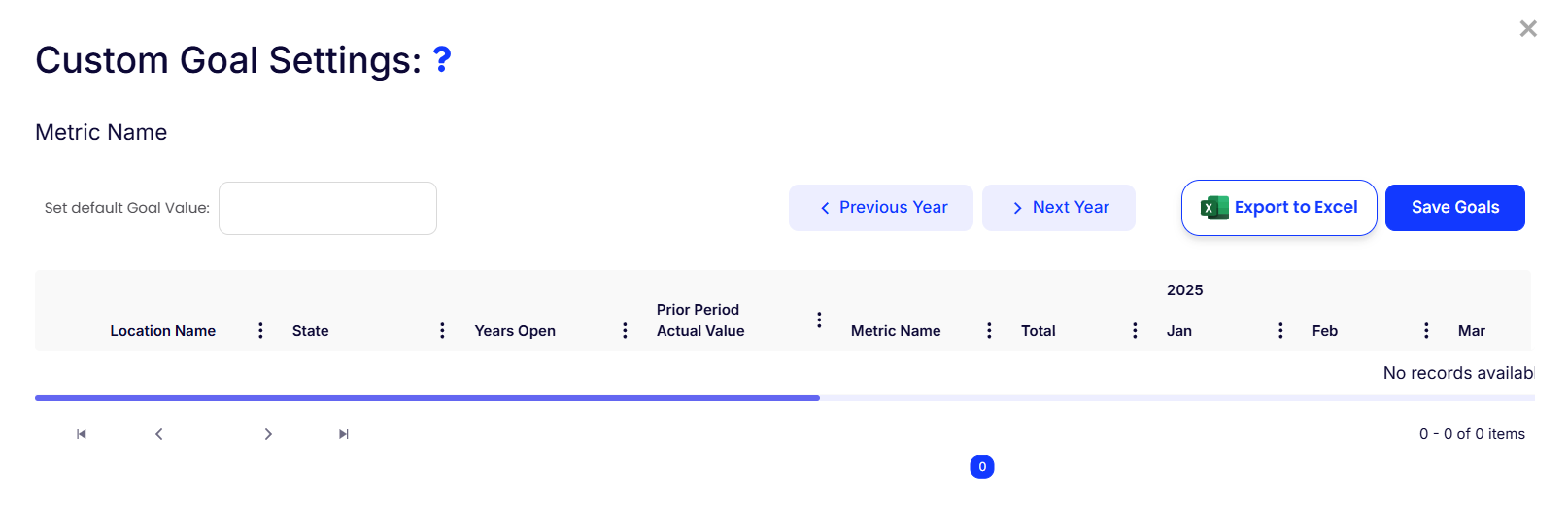
Step 4: Define Advanced Goals
- You will be redirected to the Custom Goal Settings page.
- Here, you can set a default goal value for the selected metric.
- Customize the goal further based on:
- Location Name
- State
- Years Open
- Prior Period Actual Value
- Monthly Targets (Jan - Dec)
- Use the "Previous Year" and "Next Year" buttons to compare past and future targets.
Step 5: Save and Monitor Goals
- Click "Save Goals" to finalize your settings.
- If needed, export goal data by clicking "Export to Excel".
- Regularly monitor the Scorecard Overview to track progress toward your goals.
Tips for Success
✔ Be Specific – Set clear, measurable targets for each metric.
✔ Regular Monitoring – Review goal progress frequently to ensure you’re on track.
✔ Adjust as Needed – Modify goals in response to real-time performance and evolving business needs.
Setting custom, data-driven goals helps ensure your organization stays on track for success. Use AI Growth Advisor’s advanced goal settings to create precise, flexible, and measurable targets for each metric.
Comments
0 comments
Article is closed for comments.