Scorecard Overview Follow

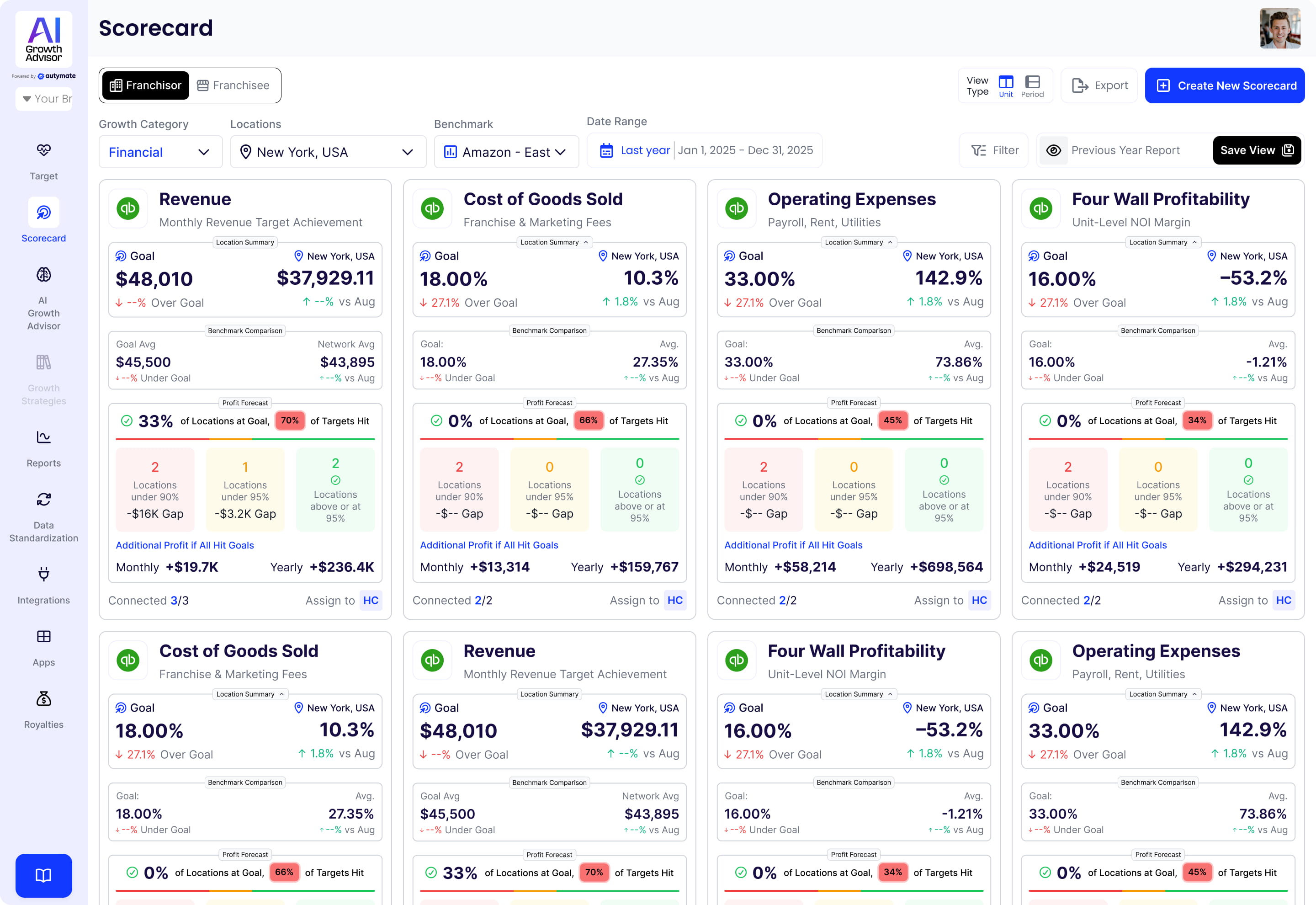
How to View Your Scorecard in AI Growth Advisor
Step 1: Log in to Your Account
The first step in accessing your Scorecard Overview is to log in to your AI Growth Advisor account.
- Enter your username and password in the provided fields.
- Click the 'Sign In' button to access your dashboard.
Step 2: Access the Scorecards Section
- Once logged in, navigate to the left-hand menu and click on 'Scorecard'.
- This will open the Scorecard Overview, where you can track key performance indicators (KPIs) related to your business.
Step 3: Overview of Your Scorecard
The Scorecard Overview page provides a high-level snapshot of your scorecards.
You will see multiple cards, each representing different financial and operational metrics, such as:
- Increase Income
- Profitability Analysis
- Reduce Expenses
- Royalty
- Cabinet
Each scorecard tile displays:
- The current score for the category.
- A progress bar showing goal achievement.
- A "Connected" status that indicates data synchronization is complete.
Step 4: Understand Your Scorecard Metrics
- Click on any scorecard tile to view detailed data.
- Metrics include:
- Total Score – A quick indicator of performance.
- Membership and Subscriptions – Displays the amount gained through memberships and subscriptions.
- Additional Services – Helps know the additional cost for further services a business offers.
- Retail Products – Tracks the amount generated through various retail products related to gym training.
- Each metric has color-coded labels:
- 🟢 Green – Strong performance.
- 🟡 Yellow – Moderate progress.
- 🔴 Red – Needs improvement.
Step 5: Analyze Your Scorecard Data
- Use the Unit view to analyze location-specific financials.
- Apply filters for:
- Date range (e.g., last month, custom range).
- Specific locations & territories.
- Responsible Party (RP) and Agent Count.
- The data toggle allows switching between raw values and percentages.
Step 6: Seek Help if Needed
- If you need support while reviewing your scorecard, click the "Feedback" button on the right.
- You can also use the settings menu for additional configurations.
And that’s it! Now you know how to navigate and analyze your AI Growth Advisor Scorecard Overview. Use it regularly to track progress, identify opportunities, and drive success!
Comments
0 comments
Article is closed for comments.