Enhance your email communication and streamline data management by connecting Gmail with your AI Growth Advisor account. Follow these easy steps to set up the integration:
Step 1: Log In
Step 2: Find and Request Gmail Integration
-
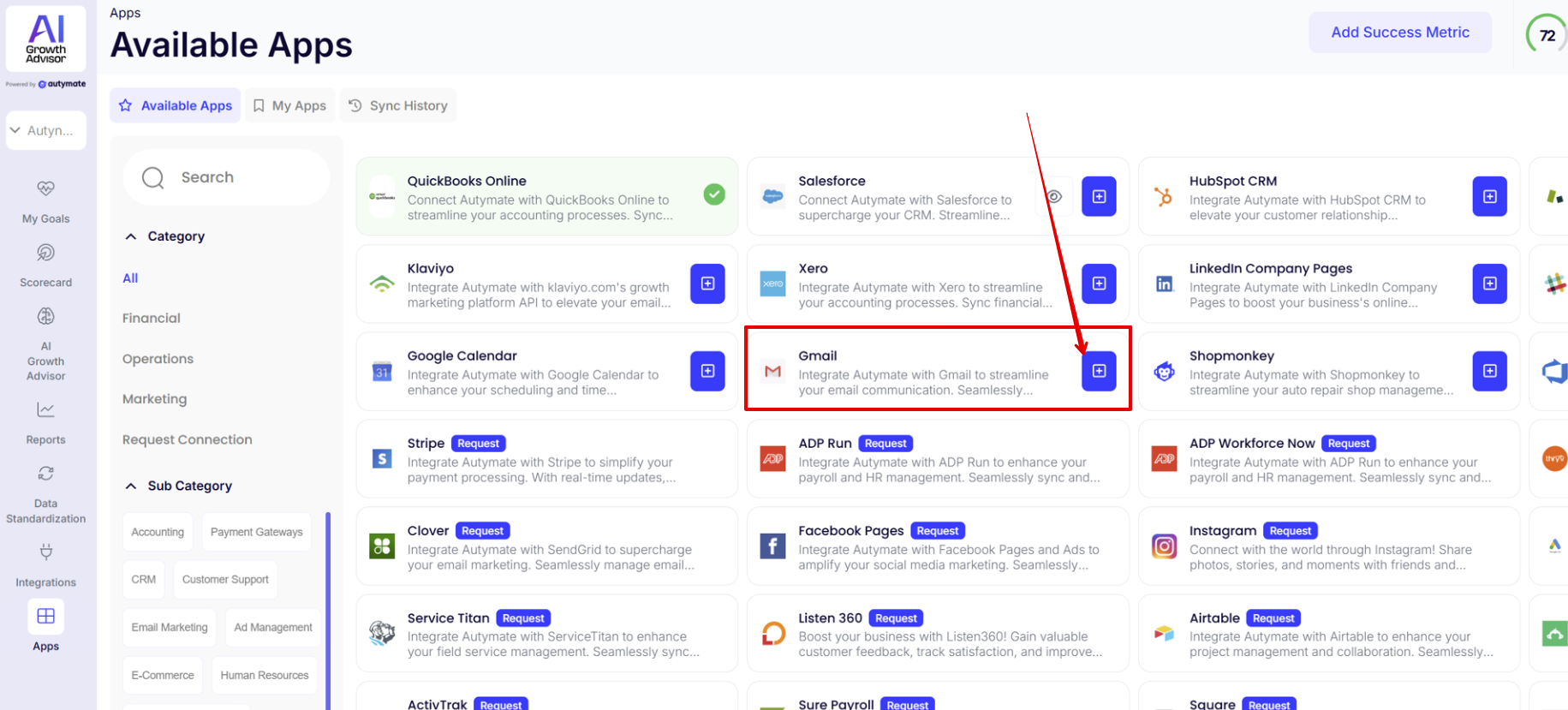
On the Available Apps page, use the search bar or scroll to locate Gmail.
-
Click the plus (+) icon next to the Gmail app to start the connection process.
(Note: If the integration requires approval, you may see a “Request” button instead. If so, click “Request.”)
Step 3: Connect Gmail
-
Once the Gmail integration is enabled for your account, go to the My Apps tab.
-
Locate Gmail in your list of connected apps and click the "Connect" button.
-
Follow the on-screen prompts to securely sign in to your Gmail account and authorize AI Growth Advisor to access your email.
Step 4: Success!
-
Once authorization is complete, your Gmail account will be displayed as connected in the My Apps list.
-
You can now automate workflows, sync data, and use Gmail features within AI Growth Advisor.
Need help?
For step-by-step support or troubleshooting, reach out to Autymate Support or use the in-app chat feature.

Comments
0 comments
Article is closed for comments.