Menu
Sync History for Franchisors Follow

- Updated
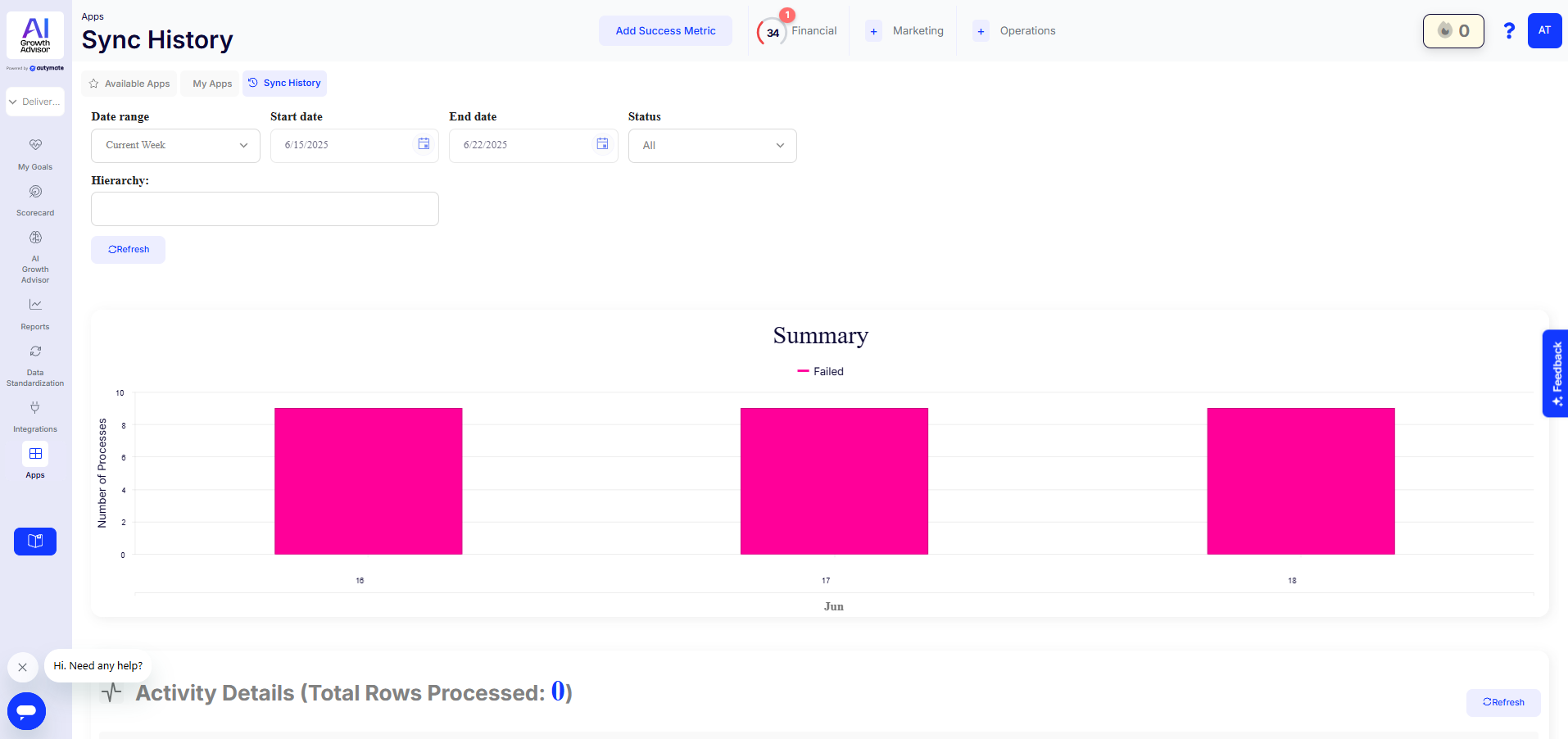
Purpose of Sync History
The Sync History tool allows franchisors to monitor and track all synchronization processes across their franchise locations. With real-time insights into data transfers between systems, franchisors can ensure accurate, seamless syncing between their POS, payroll, and other connected platforms.
Why Franchisors Need to See Their Sync History
🔹 Ensure Data Accuracy: Track and confirm that all payroll, sales, and operational data sync correctly across franchise locations.
🔹 Monitor System Health: Identify sync delays, errors, or processing issues to maintain smooth data flow.
🔹 Troubleshoot & Resolve Issues Faster: Access detailed sync logs to pinpoint issues and escalate to support if needed.
🔹 Track Sync Status & Trends: Use filters to track syncs by date range, status, and hierarchy, ensuring every location is up to date.
Is Sync History Just a Data Log?
No! Sync History is a powerful diagnostic tool. While it does provide a historical reference, it also enables franchisors to:
1. Spot Errors in Real-Time – Instantly detect sync failures and inconsistencies.
2. Filter & Identify Issues Faster – Use filters to isolate problematic syncs by location, date, or status.
3. Resolve or Escalate Problems – Use the detailed sync logs to either fix minor issues independently or share them with support for further troubleshooting.
Key Indicators of Sync Issues
🟢 Successful Syncs: Marked in green, indicating data was transferred correctly.
🔴 Failed Syncs: Marked in red, signalling errors that require immediate attention.
📊 Graph & Activity Details: The summary section visually displays sync success rates over time, helping franchisors track performance trends.
📄 Detailed Sync Logs: Every sync event includes timestamps, connection status, and the total number of rows processed, allowing for a deeper analysis of issues.
How to Identify Issues on the Sync History Page
Look for Failed Syncs – Entries marked red indicate a failed process that needs investigation.
Error Messages & Codes – Expand the log details to view specific error messages for troubleshooting.
Use Filters for Quick Analysis – Narrow down your sync history by date range, status, and location to find issues more quickly.
Drill Down for Deeper Insights – Click into specific sync logs to investigate what went wrong at a particular franchise location or time.
By actively monitoring the Sync History, franchisors can ensure seamless operations, minimize data errors, and take corrective action before issues escalate.
Comments
0 comments
Article is closed for comments.