How to Update Franchisor Settings Follow

The General Info page in AI Growth Advisor's Franchisor settings allows you to input and manage essential details about your organization. This section is crucial for setting up your organization's profile within the system, ensuring accurate data processing and AI-tailored strategies.
Access Settings
-
Log in to your AI Growth Advisor account.
-
Click the profile icon in the top-right corner of the main screen.
-
From the drop-down menu, select Franchisor under Settings.
Open the General Info Tab
-
You will be directed to the Franchisor setup page.
-
Click on General Info (Step 1 in the setup flow on the left-hand side).
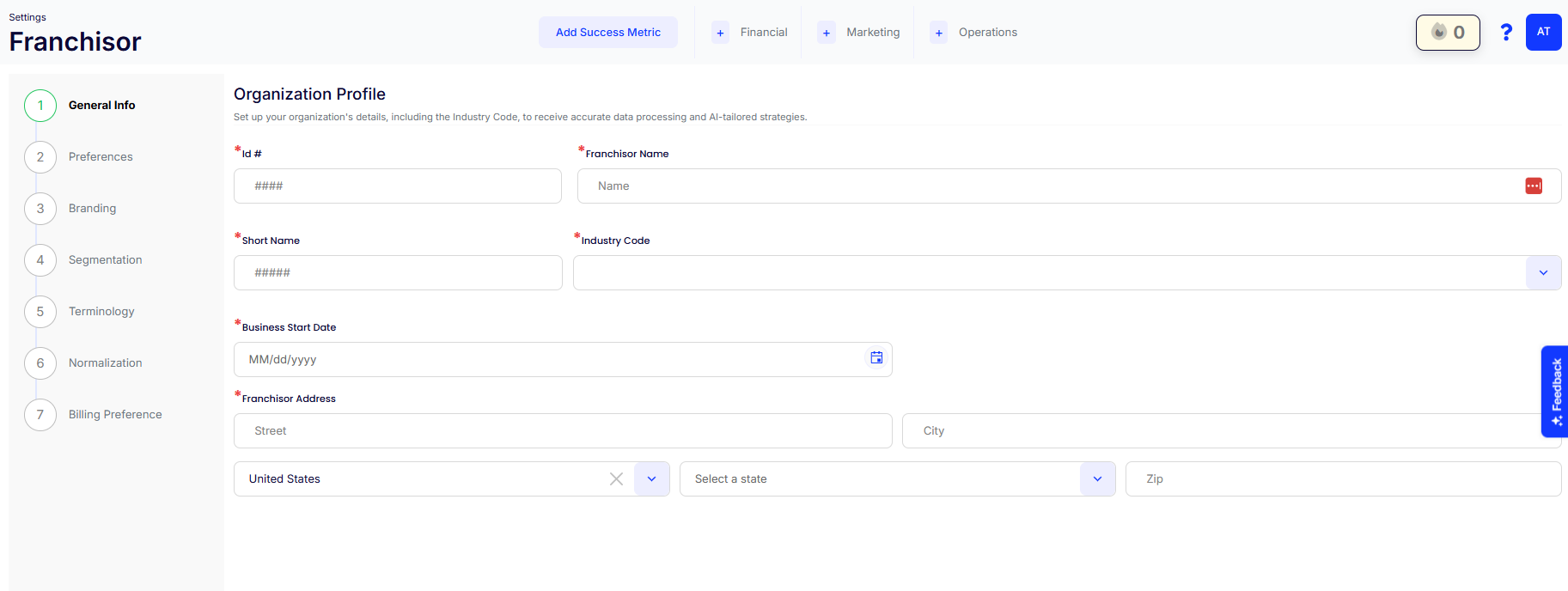
Fill in the Details
-
Id #: Enter the unique identifier for your organization.
-
Franchisor Name: Input the full legal name of your organization.
-
Short Name: Provide a concise, commonly used name for your organization.
-
Industry Code: Select the appropriate industry classification from the dropdown.
-
Business Start Date: Use the date picker to enter the official start date of your business.
-
Franchisor Address: Fill in the complete business address:
-
Street
-
City
-
State (select from dropdown)
-
Zip Code
-
Country (defaults to the United States)
-
Save and Continue
After filling in all the required fields (marked with a red asterisk *), click Save and Continue to proceed to the next setup step.
By following these steps, you’ll ensure your organization’s general profile is set up correctly in AI Growth Advisor, laying the foundation for a smooth, personalized, and intelligent system experience.
Comments
0 comments
Article is closed for comments.