How to Manage Locations? Follow

Managing Locations in AI Growth Advisor
The Locations feature in AI Growth Advisor enables your organization to manage physical or operational locations easily. Everything is built to support scalability, accuracy, and real-time control, from creating new locations and editing existing ones to performing bulk setup and exporting location data.
This guide walks you through accessing and effectively using the Locations section in your AI Growth Advisor account.
Accessing Locations
-
Log In
Open your browser and go to the AI Growth Advisor login page. Enter your credentials and sign in. -
Access Organization Settings
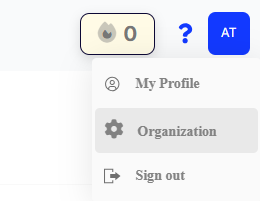
Click your profile icon in the top-right corner of the dashboard.
Select Organization from the dropdown menu. -
Navigate to Locations
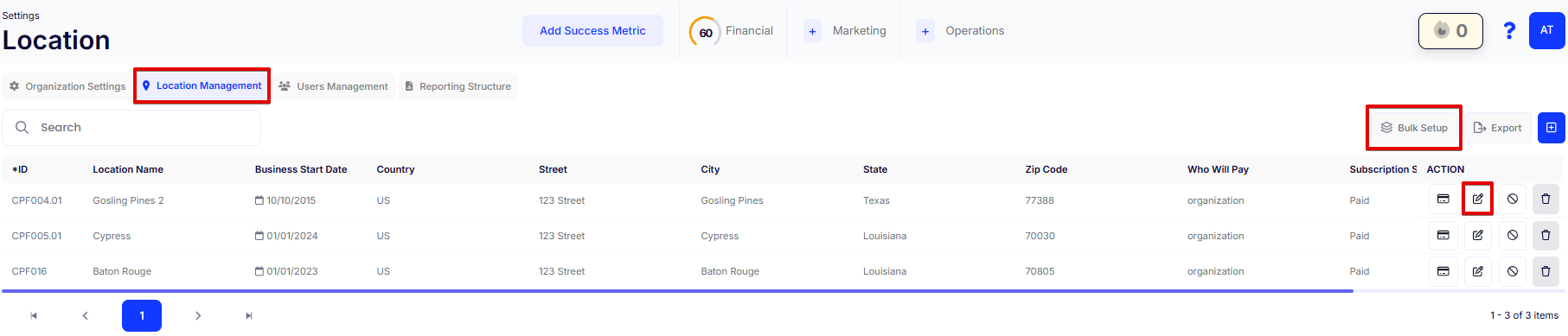
Click on the Location Management tab at the top.
Managing Locations
Search and View Locations
-
Use the Search bar to quickly find a specific location.
-
The table view provides location details, including:
-
ID
-
Location Name
-
Opening Date
-
Country, State, City, Zip
-
Subscription and Billing Responsibility
-
Using Location Options
Add a New Location
-
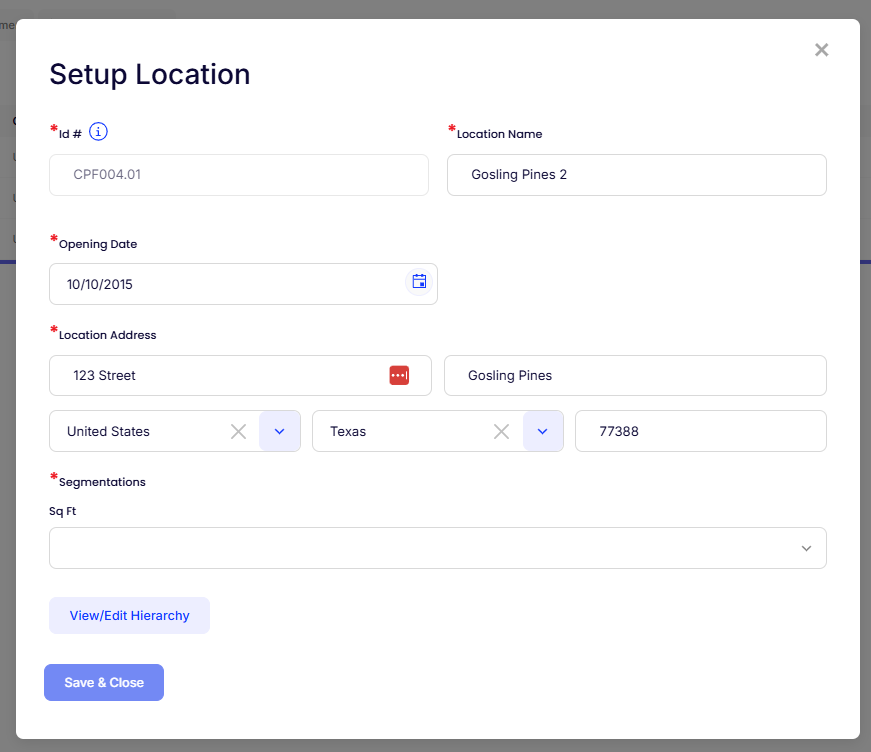
Click the Edit (pencil) icon under the ACTION column for any row, or use the “Add New” option when available.
-
Fill in the required fields in the setup form:
-
ID #
-
Location Name
-
Opening Date
-
Address (Street, City, State, Zip)
-
Segmentations (e.g., Sq Ft)
-
-
Click Save & Close to finalize the entry.
Bulk Setup for Faster Import
-
Click Bulk Setup in the top-right corner of the Location Management screen.
-
In the pop-up window:
-
Step 1: Download the CSV template.
-
Step 2: Fill in your location data in the file.
-
Step 3: Upload the completed file using the Select files... button.
-
-
Click Next to complete the process.
Export Locations
-
Click the Export button to download your current list of locations in CSV format.
-
Useful for reporting, data backups, or offline review.
Best Practices & Tips
-
Keep your location data current by updating addresses or business start dates as needed.
-
Use Bulk Setup to onboard new franchise groups or expand quickly and efficiently.
-
Assign segmentations (like square footage or region) to streamline filters and reporting.
-
Always save after changes to ensure updates are applied across scorecards and reporting.
Comments
0 comments
Article is closed for comments.