How to Set Advanced Goals in AI Growth Advisor Scorecard? Follow

Advanced Goal Setup in AI Growth Advisor
AI Growth Advisor’s Advanced Goal Setup feature enables precise, location-level goal tracking across periods. Whether you manage one store or hundreds, this tool allows you to set and adjust monthly or annual performance targets per location, helping you stay agile and aligned with your strategic objectives.
Accessing Advanced Goal Setup
-
Log In
Sign in to your AI Growth Advisor account. -
Navigate to Scorecard
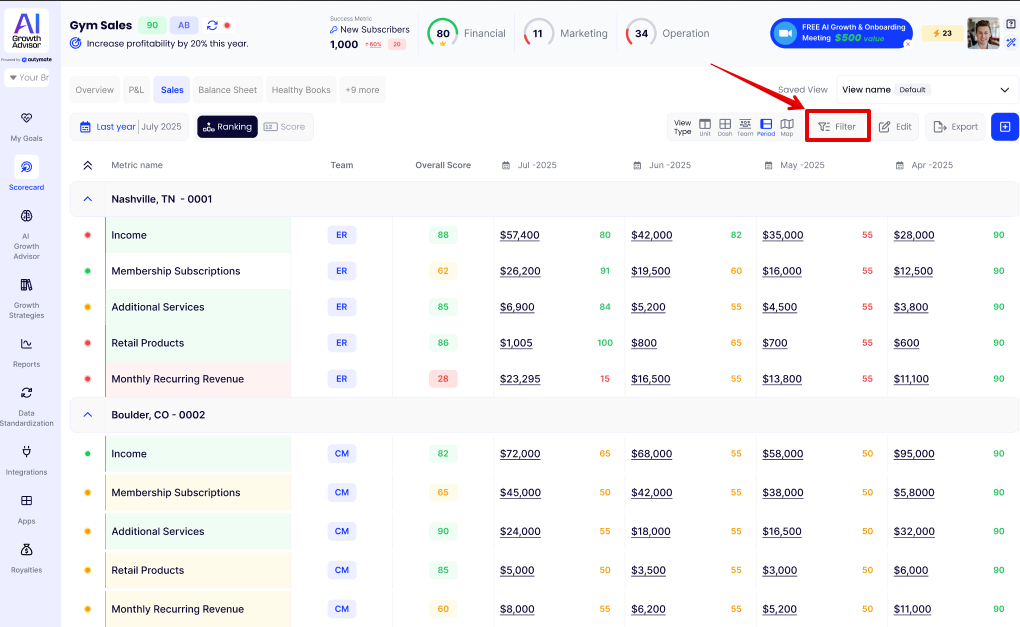
From the sidebar, click on Scorecard, then select a specific view such as QuickBooks Online P&L Summary. -
Enter Scorecard Editor
Click the Edit button to modify your metric or add a new one. -
Open Advanced Goal Setup
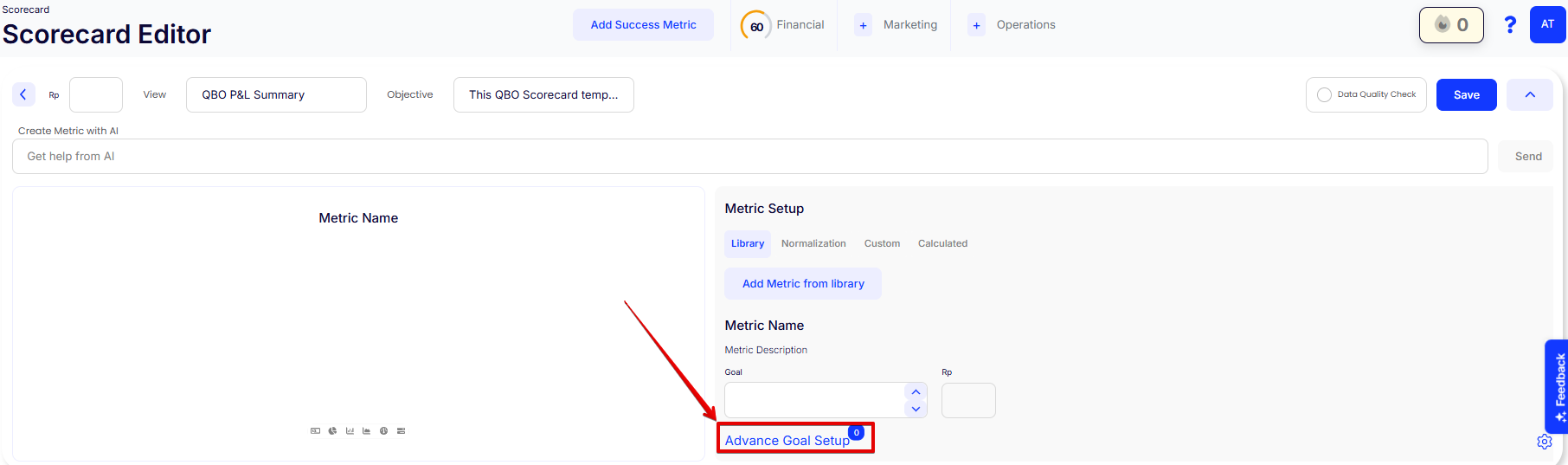
Scroll down and click Advanced Goal Setup.
Features of Advanced Goal Setup
-
Location-Based Goals
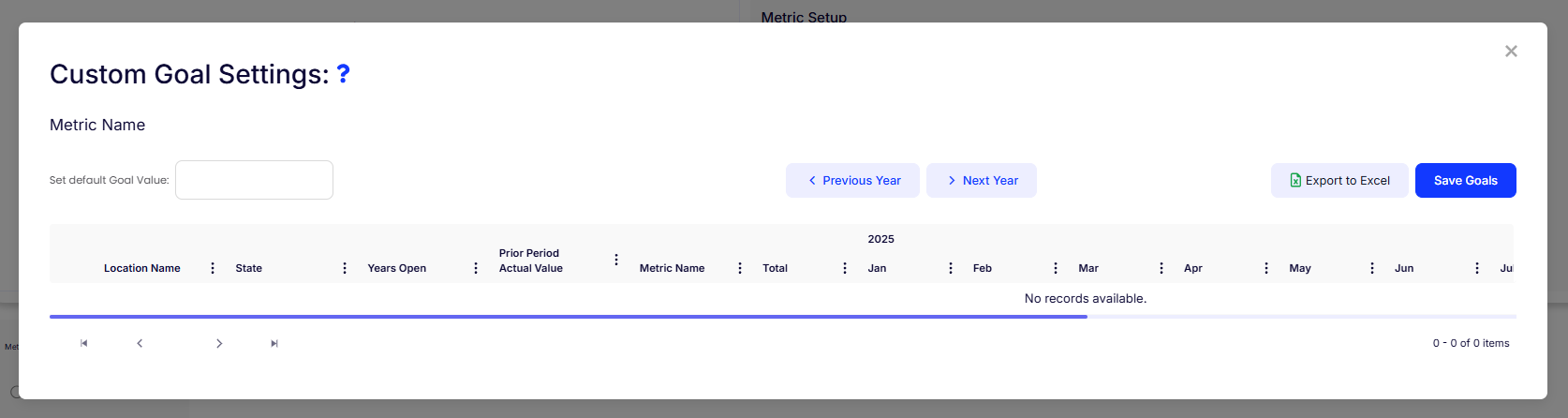
Assign targets to specific locations individually. -
Monthly Flexibility
Adjust goals by month to reflect seasonal trends or specific campaigns. -
Multi-Year Navigation
Use the "Previous Year" and "Next Year" buttons to configure goals across multiple years. -
Data Export
Export current settings to Excel for review or backup.
How to Set Up Advanced Goals
-
Set Default Goal Value
Enter a baseline target that will auto-fill across all rows unless overwritten. -
Filter by Location
Use filters such as Location Name, State, and Years Open to narrow the goal list. -
Enter Monthly Goals
Manually input values for each month (Jan–Dec) based on business needs. -
Review Past Data
Use “Prior Period Actual Value” for context when setting new goals. -
Save Goals
Click Save Goals in the top-right to finalize your entries.
Tips for Effective Goal Setting
-
Align your goals with overall KPIs tracked on your Scorecard.
-
Use previous period data as a reference for realistic growth targets.
-
Revisit goals quarterly to adjust based on market or performance shifts.
-
Export goals regularly as a backup or to share with team leads.
Comments
0 comments
Article is closed for comments.