How to use Data Health Check? Follow

Overview
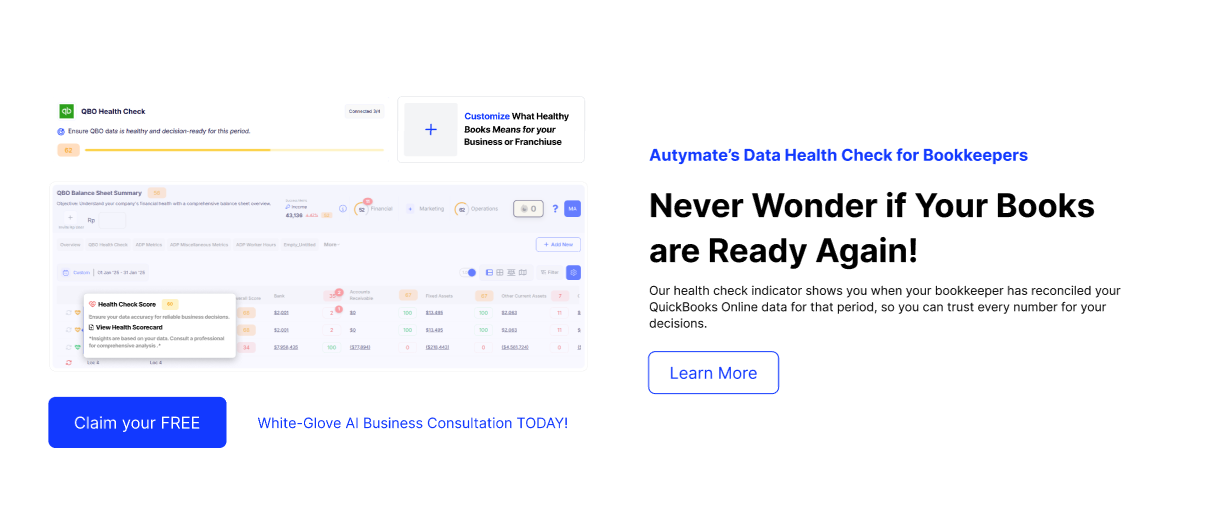
The AI Growth Advisor's Data Health Check ensures that your QuickBooks Online data is accurate, reliable, and ready for informed business decisions. Quickly verify whether your bookkeeper has properly reconciled your books, helping you trust every number in your business reports.
How to Use Data Health Check
Step 1: Access Health Check
- Go to your AI Growth Advisor dashboard.
- Open your Scorecard from the left-side menu.
Step 2: Check Data Health
- View your QuickBooks Online Health Check indicator displayed on your dashboard.
- View your data health status instantly: Green indicates healthy data, while Red or Yellow indicates data issues.
- Click on the health score indicator to expand for more details.
- Easily identify specific data issues or reconciliation status indicated in your dashboard.
Key Features of Data Health Check
- Instant Health Indicators: See if your books are reconciled and ready for decisions.
- Detailed Reports: Quickly view detailed summaries to ensure full transparency into your data health.
- Customizable Criteria: Define what "healthy data" means specifically for your business or franchise.
Benefits for Your Business
- Improved Data Trust: Always know your data is accurate, enabling confident decision-making.
- Quick Troubleshooting: Identify and resolve bookkeeping issues promptly before they escalate.
- Time Efficiency: Minimize manual data verification, allowing your team to focus on growth.
- Peace of Mind: Never worry again whether your financial reports are reliable and up-to-date.
The AI Growth Advisor's Data Health Check streamlines data management, enhances accuracy, and ensures you can always trust your financial numbers for smarter, faster decisions.
Comments
0 comments
Article is closed for comments.